
iCloud Photos is one of the most widely used photo systems in American households, yet many people remain unsure what it actually does with their pictures. A plain-English guide to iCloud Photos starts with a simple distinction: the service is designed primarily for sync and convenient access across Apple devices, not as a complete independent backup. Understanding that difference prevents the most common surprises—missing originals, unexpected storage charges, and the false belief that every photo is safely protected forever.
I have helped many families sort out iCloud Photos after a device upgrade, a storage warning, or the sudden realization that full-resolution files were no longer on the phone. The confusion usually comes from the way the system quietly optimizes storage and mirrors changes across devices. Once the underlying behavior is clear, households can decide whether iCloud Photos meets their needs or whether an additional independent copy is required.
What iCloud Photos Actually Does
When iCloud Photos is turned on, every photo and video taken on a linked Apple device is uploaded to Apple’s servers and then made available on other devices signed into the same Apple ID. The goal is convenience: take a picture on a phone and see it moments later on a tablet or computer. Edits, deletions, and album organization also travel with the library.
This behavior is sync. A change made in one place appears in the others. If a photo is deleted from the iPhone, it will also disappear from the Mac and from iCloud.com after a short delay (and after the Recently Deleted album is emptied). The system is working as designed. It is not failing when a deletion spreads; it is doing what sync is supposed to do.
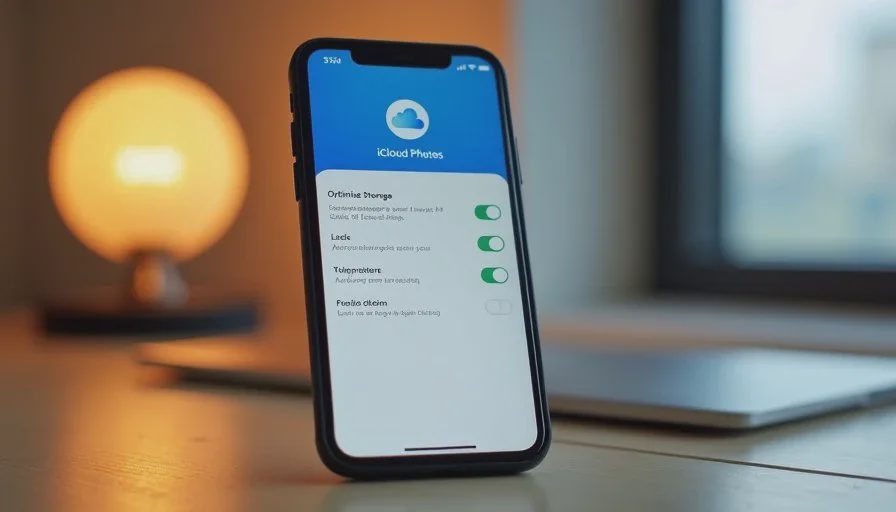
iCloud Photos can also optimize device storage. When this option is enabled, full-resolution originals live in iCloud while smaller versions remain on the phone or tablet. The device stays responsive and keeps free space available, but the complete files exist primarily in the cloud. Accessing the full original requires a network connection and a download.
Storage Limits and What Happens When They Are Reached
Every Apple ID receives a modest amount of free iCloud storage. Once the photo library and other iCloud data exceed that limit, uploads pause. New photos remain only on the device that took them until more storage is purchased or space is freed. Many households first notice the problem when a storage warning appears or when recent photos fail to appear on other devices.
Paid storage plans solve the immediate capacity issue, yet they also create an ongoing cost. Before increasing the plan, it is worth checking what is consuming space. Large video files, burst photos, and old device backups are common contributors. Reviewing the library and removing clear duplicates or unwanted screenshots can reclaim room without an immediate upgrade.
It is also useful to remember that iCloud storage is shared across several services—photos, device backups, documents, and messages. A full photo library can leave little room for anything else. Separating photo storage decisions from other iCloud uses often produces a clearer picture of the true cost.
The Backup Question Most Households Ask Too Late
Because photos appear on multiple devices and in the cloud, it is easy to assume they are backed up. In most configurations they are not. iCloud Photos keeps a synced library. If the library is damaged, accidentally deleted, or affected by an account-level problem, the synced copies are at risk together.
An independent backup sits outside that sync relationship. It can be an external hard drive that receives a full-resolution export, a computer-based archive that is not linked to iCloud Photos, or a different cloud service that stores its own separate copy. The defining feature is that changes or deletions in iCloud Photos do not automatically remove the independent copy.
I recommend that every household using iCloud Photos as its primary library also maintain at least one independent copy of the photos they would be most upset to lose. The process does not need to be complicated. Exporting the library or the most important albums to an external drive once or twice a year already changes the risk profile.

Shared Libraries and Family Sharing
Apple offers Shared Photo Libraries and Family Sharing features that let multiple people contribute to and view a common collection. These tools are convenient for households that want one place for recent family pictures. They also introduce new questions about ownership and control. Who can delete photos? What happens if a family member leaves the sharing group? Where do the originals ultimately reside?
Before relying heavily on a shared library, it is worth reading the current rules for the feature and testing a few deletions or removals with non-critical images. Clarity at the beginning prevents later misunderstandings about who controls the memories.
Practical Steps for a Healthier iCloud Photos Setup
A few deliberate checks bring most libraries into a more predictable state.
First, open the iCloud Photos settings on each device and note whether Optimize iPhone Storage (or the equivalent) is enabled. Decide whether the convenience of smaller local files outweighs the need for full-resolution originals always available offline.
Second, confirm how much iCloud storage is currently used and what the monthly cost will be if the library continues to grow. Factor that cost into the household’s digital paperwork so it does not become another forgotten subscription.
Third, create or verify one independent copy of the photos that matter most. An external drive or a separate computer folder that is not synced back into iCloud Photos is sufficient for a starting point. Verify that the copied files open correctly and note the date and location.
Fourth, add iCloud Photos to the household account map. Record the Apple ID that owns the library, the storage plan in use, and the location of any independent backups. Future device upgrades and account changes become easier when this information is already written down.
These steps fit comfortably inside a single digital reset session or can be spread across a couple of twenty-minute windows. The result is a photo system whose behavior is understood rather than assumed.
When iCloud Photos Is Enough—and When It Is Not
For many households iCloud Photos provides excellent everyday convenience. Photos appear where they are needed, editing is straightforward, and the system stays out of the way. It is enough when the family accepts the sync model, monitors storage, and keeps an independent copy of irreplaceable images.
It is not enough when the only copies of important photos live inside the synced library, when storage limits are routinely hit without a plan, or when the household mixes Apple and non-Apple devices and expects seamless full-resolution access everywhere. In those cases an additional backup layer or a different primary library becomes the practical next step.
The decision does not require rejecting Apple’s tools. It only requires seeing clearly what the tools do and do not provide.
A Small Next Step You Can Take This Week
Open the Photos app or the iCloud settings on your main device. Check whether Optimize Storage is turned on and how much iCloud storage remains. Then choose one album or year of photos that would be painful to lose and export a full-resolution copy to an external drive or a separate folder. Confirm that the files open. Write down where the copy lives.
That single action converts an abstract understanding of iCloud Photos into a concrete improvement in protection. Future digital resets can build on the clearer foundation.
Reset one small thing, then get on with your life. Understanding how iCloud Photos actually works is one of the more useful small things a household can complete.